
Form Submission Review Queue
Overview
When a public form submission uses an email address that already exists in your CRM, but the submitted name or company does not match the existing contact, the system does not update the CRM automatically.
Instead, the submission is routed into a review flow. This allows an admin to decide how the data should be handled without risking accidental changes to the wrong contact.
What is in this Article
Configure the FormSubmission Review Queue in Settings
Before Submission Review can be used, you must configure a Submission Review Default Policy.
This policy determines how form submissions are processed by default and whether submissions that contain potential identity conflicts are sent for manual review.
Individual forms can inherit the default policy or override it with their own review settings when different behavior is required.
If Submission Review is disabled (set to Off), submissions will not enter the review workflow described in this article.
To set this please go to Settings > Company Settings > Forms
You will have the following options to select from:
OFF (Submission Review is disabled)
Flagged submissions are not routed to the Review Queue. The review side pane and review workflow described in this article are not used.
Use this option only if you do not require submission identity review.
ALWAYS REVIEW
Every flagged submission requires manual review before any protected CRM data can be updated. This is the safest option and is recommended for organizations that want complete control over identity conflicts.
Behavior:
• Clearly new contacts are processed automatically.
• Existing-contact matches and identity exceptions are always sent to the Review Queue.
• An administrator must review and resolve each flagged submission.
SMART REVIEW (Recommended)
Only submissions that require manual attention are sent for review.
Behavior:
- Low-risk matches are handled automatically, while higher-risk identity conflicts are routed to the Review Queue.
Note: This option provides a balance between automation and data protection, making it suitable for most organizations.
AUTO-APPLY LOW-RISK MATCHES
Automatically applies changes for submissions considered low risk, reducing the number of items requiring manual review. Higher-risk identity conflicts continue to be routed for review.
This option is best suited for organizations with well-established submission patterns and a lower risk of identity conflicts.
Changing the default policy affects how future submissions are processed. Existing review items are not changed automatically.
Why this review exists
Shared and reused email addresses are common (for example: info@, sales@, front desk, or role-based emails). If the system trusted every submission blindly, it could:
- Overwrite the wrong person’s name
- Associate the wrong company with a contact
- Merge data from two different people into one CRM record
To prevent this, certain submissions are flagged for human review before any CRM data is changed.
What triggers a review
A submission is sent for review when:
- The submitted email already belongs to an existing CRM contact, and
- One or more of these fields do not match the CRM record:
- First name
- Last name
- Company
When this happens:
- The CRM contact is not updated
- A pending review item is created
- The submission shows a review state
- The item appears in the Review Queue
Where you can review these submissions
You can resolve review items from two places.
-
From the submission side pane (fastest way)
- Open the form
- Go to the Submissions tab
-
Open a submission marked for review
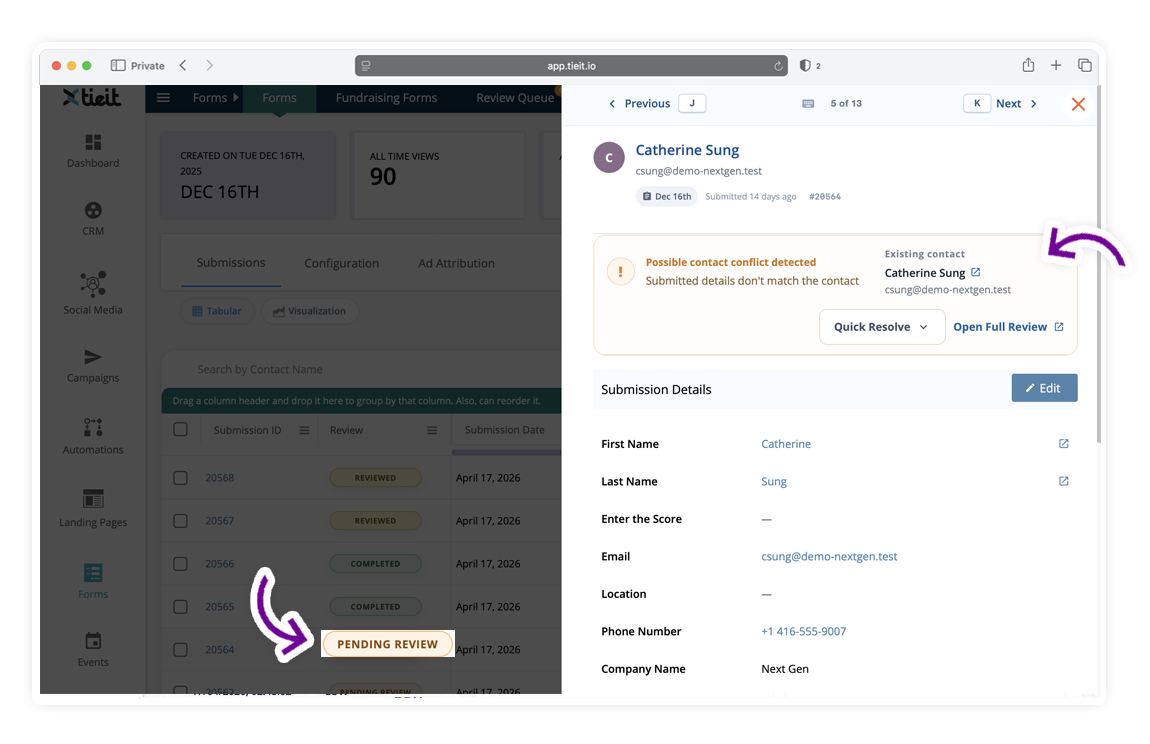
The side pane shows a review strip and allows you to resolve the issue without leaving the page.
-
From the Review Queue (full control)
The Review Queue shows all pending items in one place and gives access to more advanced review options when needed.
The side pane includes a shortcut to open the same item in the full queue.

What you see during review
The review panel shows:
- Submitted details — what the person entered on the form
- Matched CRM contact — the existing contact with the same email
- A comparison view showing difference
- Quick resolution actions
- A link to open the CRM contact in a new tab
- A shortcut to the full review page

Your resolution options

You can choose one of three actions:
Use CRM Contact
Keep the existing CRM data. Ignore the submitted differences.
Review Other Options
Update the matched CRM contact with the submitted name or company.
Skip for Now
Leave the item unresolved and review it later. No CRM changes are made.
Selecting an option does not immediately save the decision.
Confirm and undo protection
After selecting an action:
- Click Confirm
- A short countdown appears:
- Undo (Z) · Ns
During this countdown:
- Nothing is saved yet
- You can click Undo
- Or press the Z key on your keyboard
If you undo, you’ll see:
Selection undone. Choose another option.
When the countdown finishes, the action is applied.
Built-in safety behaviors
Several safeguards prevent unintended updates:
- CRM data is never changed before review
- If you refresh the page, navigate away, or close the pane during the countdown, the action does not complete
- Only the plain Z key triggers undo (not Cmd+Z / Ctrl+Z)
- Review decisions are remembered for similar future cases
Typical review workflow
For most cases, resolution takes a few seconds:
- Open the flagged submission
- Review the differences
- Optionally open the CRM contact in a new tab
- Choose an action
- Confirm and allow the countdown to complete
You rarely need to leave the submissions page for simple cases.
When to use the Review Queue instead
Use the full queue when:
- The situation is unclear
- You want to see more history
- You need advanced or manual handling
- You’re reviewing many pending items at once
What this protects
This review flow ensures:
- CRM data is never silently overwritten
- Shared or reused emails are handled safely
- Reviewers can resolve common cases quickly
- Only relevant differences are shown
- Actions are deliberate and reversible
- Advanced review is always available when needed
Summary
When identity details from a public form can’t be safely matched to an existing contact, the system pauses and asks for a decision.
You can handle most cases directly from the submission side pane in seconds, or move to the Review Queue for more detailed review when needed.