
Editing Form Responses and Submissions
Submission Review for Public Form Entries
Overview
When a public form submission uses an email address that already exists in your CRM, but the submitted name or company does not match the existing contact, the system does not update the CRM automatically.
Instead, the submission is routed into a review flow. This allows an admin to decide how the data should be handled without risking accidental changes to the wrong contact.
What is in this Article
Why this review exists
Shared and reused email addresses are common (for example: info@, sales@, front desk, or role-based emails). If the system trusted every submission blindly, it could:
- Overwrite the wrong person’s name
- Associate the wrong company with a contact
- Merge data from two different people into one CRM record
To prevent this, certain submissions are flagged for human review before any CRM data is changed.
What triggers a review
A submission is sent for review when:
- The submitted email already belongs to an existing CRM contact, and
- One or more of these fields do not match the CRM record:
- First name
- Last name
- Company
When this happens:
- The CRM contact is not updated
- A pending review item is created
- The submission shows a review state
- The item appears in the Review Queue
Where you can review these submissions
You can resolve review items from two places.
-
From the submission side pane (fastest way)
- Open the form
- Go to the Submissions tab
-
Open a submission marked for review
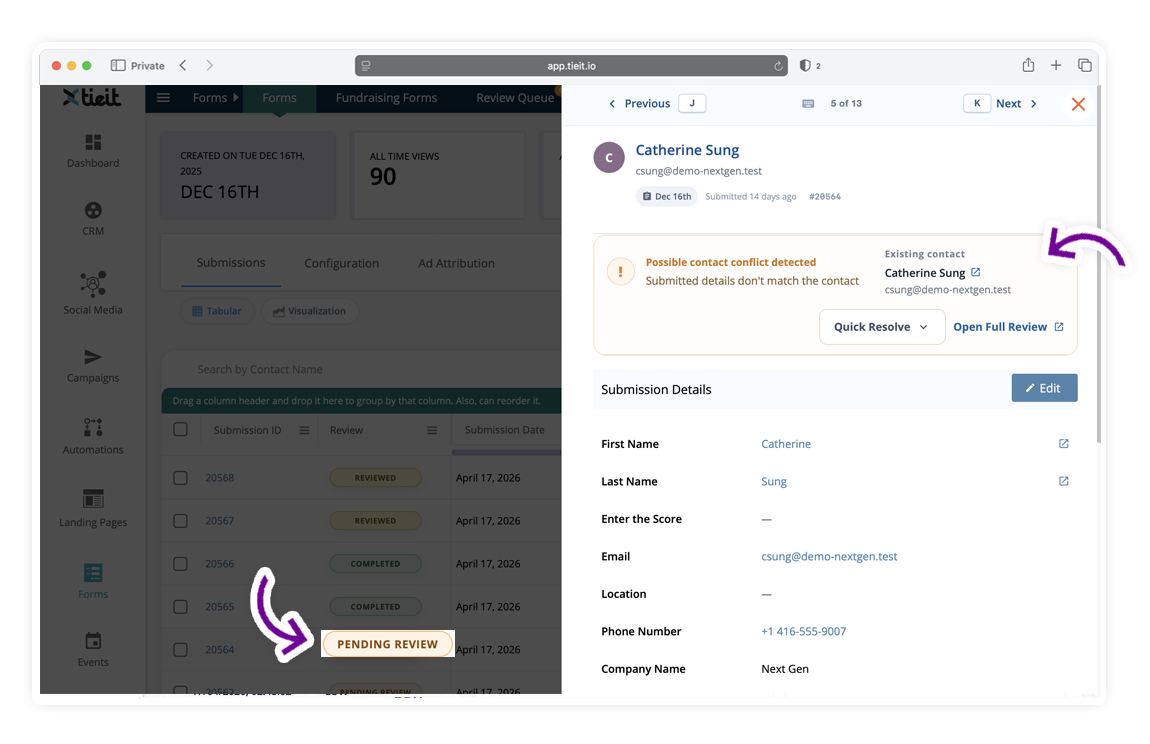
The side pane shows a review strip and allows you to resolve the issue without leaving the page.
-
From the Review Queue (full control)
The Review Queue shows all pending items in one place and gives access to more advanced review options when needed.
The side pane includes a shortcut to open the same item in the full queue.

What you see during review
The review panel shows:
- Submitted details — what the person entered on the form
- Matched CRM contact — the existing contact with the same email
- A comparison table showing only the fields that differ
- Quick resolution actions
- A link to open the CRM contact in a new tab
- A shortcut to the full review page
Matching fields are hidden so you can focus only on what needs attention.

Your resolution options

You can choose one of three actions:
Use CRM Contact
Keep the existing CRM data. Ignore the submitted differences.
Use Submitted Values
Update the matched CRM contact with the submitted name or company.
Skip for Now
Leave the item unresolved and review it later. No CRM changes are made.
Selecting an option does not immediately save the decision.
Confirm and undo protection
After selecting an action:
- Click Confirm
- A short countdown appears:
- Undo (U) · Ns
During this countdown:
- Nothing is saved yet
- You can click Undo
- Or press the U key on your keyboard
If you undo, you’ll see:
Selection undone. Choose another option.
When the countdown finishes, the action is applied.
Built-in safety behaviors
Several safeguards prevent unintended updates:
- CRM data is never changed before review
- If you refresh the page, navigate away, or close the pane during the countdown, the action does not complete
- Only the plain U key triggers undo (not Cmd+Z / Ctrl+Z)
- Review decisions are remembered for similar future cases
Typical review workflow
For most cases, resolution takes a few seconds:
- Open the flagged submission
- Review the differences
- Optionally open the CRM contact in a new tab
- Choose an action
- Confirm and allow the countdown to complete
You rarely need to leave the submissions page for simple cases.
When to use the Review Queue instead
Use the full queue when:
- The situation is unclear
- You want to see more history
- You need advanced or manual handling
- You’re reviewing many pending items at once
What this protects
This review flow ensures:
- CRM data is never silently overwritten
- Shared or reused emails are handled safely
- Reviewers can resolve common cases quickly
- Only relevant differences are shown
- Actions are deliberate and reversible
- Advanced review is always available when needed
Summary
When identity details from a public form can’t be safely matched to an existing contact, the system pauses and asks for a decision.
You can handle most cases directly from the submission side pane in seconds, or move to the Review Queue for more detailed review when needed.
==============OLD==================
Overview
Managing your form submissions is now easier and more efficient! TIEIT allows you to edit form submissions directly, ensuring your CRM and billing records stay consistent. Whether you’re fixing typos, merging duplicate entries, or updating details, this feature helps you keep your data accurate and up to date.
In This Article
Why Edit Form Submissions?
Picture this: A client submits their company name as ABC Inc., but your CRM already lists ABC Incorporated. Without editing, this creates duplicate entries, causing unnecessary confusion. With TIEIT's submission editing, you can merge entries or correct details, keeping your CRM and transactions streamlined.
Note: Anyone with access to the form will have the ability to edit submissions, making updates quick and seamless.
How to Edit Form Submissions in TIEIT
- Access Submissions
-
Go to the Forms module, select your desired form, and click on it opens the Submissions tab.

-
- Open a Submission
-
Choose the submission you want to edit. The details will appear in a side pane.

-
- Edit Submission Details
- Update any field, including:
- Company Name: Start typing to see auto-complete suggestions from your CRM.
- Select an existing company to merge data.
- Create a new entry if needed by updating the spelling.
- Contact Email Address and Company Email Address
- Other fields, including custom fields, based on your form setup
- Company Name: Start typing to see auto-complete suggestions from your CRM.
- Update any field, including:


- Save Changes
- Click Save to apply the updates. Changes will sync automatically across TIEIT modules.
How Edits Reflect Across TIEIT Modules
- CRM Module
- Updated contact or company details will replace existing records or create new entries if needed.
- Transactions Module
- Invoices and Payments: Changes to names or emails automatically reflect in associated invoices or payment records.
- Merged entries ensure no duplicate transactions.
💡 These updates save you time and reduce errors across your workflow!
Using the Auto-Suggest Feature for Company Names
The auto-suggest feature for company names is designed to save time and improve accuracy by offering intelligent suggestions based on similar names already in your system.
How It Works:
- When you begin typing a company name, the system provides close matches based on existing entries. This ensures consistency and reduces the risk of duplicate records.
What You’ll See:
A list of potential matches appears for your review.
- Confirm a match by clicking ✅ or dismiss it with ❌.
-
If no match is found, you can proceed to create a new entry.


Learning and Adapting:
- Over time, the system learns from your actions. For example, if you consistently correct a specific entry, the system will recognize this pattern and begin to suggest or even auto-correct similar entries in the future.
This feature not only minimizes manual corrections but also ensures your company records remain consistent and accurate with minimal effort.
What Can’t Be Edited in Form Submissions
TIEIT’s form submission editing feature is super handy for tweaking and updating details on the go. But hey, even superheroes have their limits! 🦸♂️ Here’s a quick breakdown of the fields that can’t be edited directly from the side pane:
Fields That Aren’t Editable
- Product (Price, Quantity): You can’t change the price or quantity of products linked to a submission.
- Promo Code: Once a promo code is applied, it’s locked in for that submission.
- Attachment: Files uploaded as part of the submission are fixed and can’t be replaced.
- Donation Amount: If donations are involved, the amount entered can’t be edited.
- Recurring Type: Subscription or recurring types are set during submission and can’t be modified later.
- Fields Linked to Conditional Logic: Fields governed by conditional logic settings cannot be edited, as changes may disrupt the associated rules and dependencies.
Why This Matters
Understanding these limitations helps you plan your updates better and ensures you’re not stuck trying to edit something that isn’t editable. If you need to make changes to these fields, our support team is here to save the day—feel free to reach out!
Pro Tips for Managing Submissions Efficiently
-
Use Auto-Complete for Accuracy
Take advantage of the auto-complete feature to quickly match existing records and prevent duplication.
-
Keep Your CRM Clean
Regularly review your submissions to ensure consistency across your contact and company records.
-
Explore Advanced Form Features (Coming Soon)
Watch out for future enhancements like version history or field-level edits to further refine your submission management.
Get started with editing your form submissions today to keep your data accurate and organized! Dive into the Forms module and experience seamless updates with TIEIT.