
Managing Form Status: Activating, Deactivating, and Setting Automatic Limits
If you no longer wish to accept form submission on a form, you can deactivate a form. You can also set Sometimes, you may need to pause or permanently stop submissions on a form. This feature is useful for managing event registrations with limited capacity, time-sensitive surveys, or forms that should only accept responses for a set period. With the form status settings, you can:
- Manually disable a form at any time.
- Automatically disable a form when it reaches a submission limit, a specific date, or whichever comes first.
In This Article
Finding Active and Inactive Forms
To quickly see which forms are currently accepting submissions, go to the forms listing page. Use the tabs to switch between Active and Inactive forms.
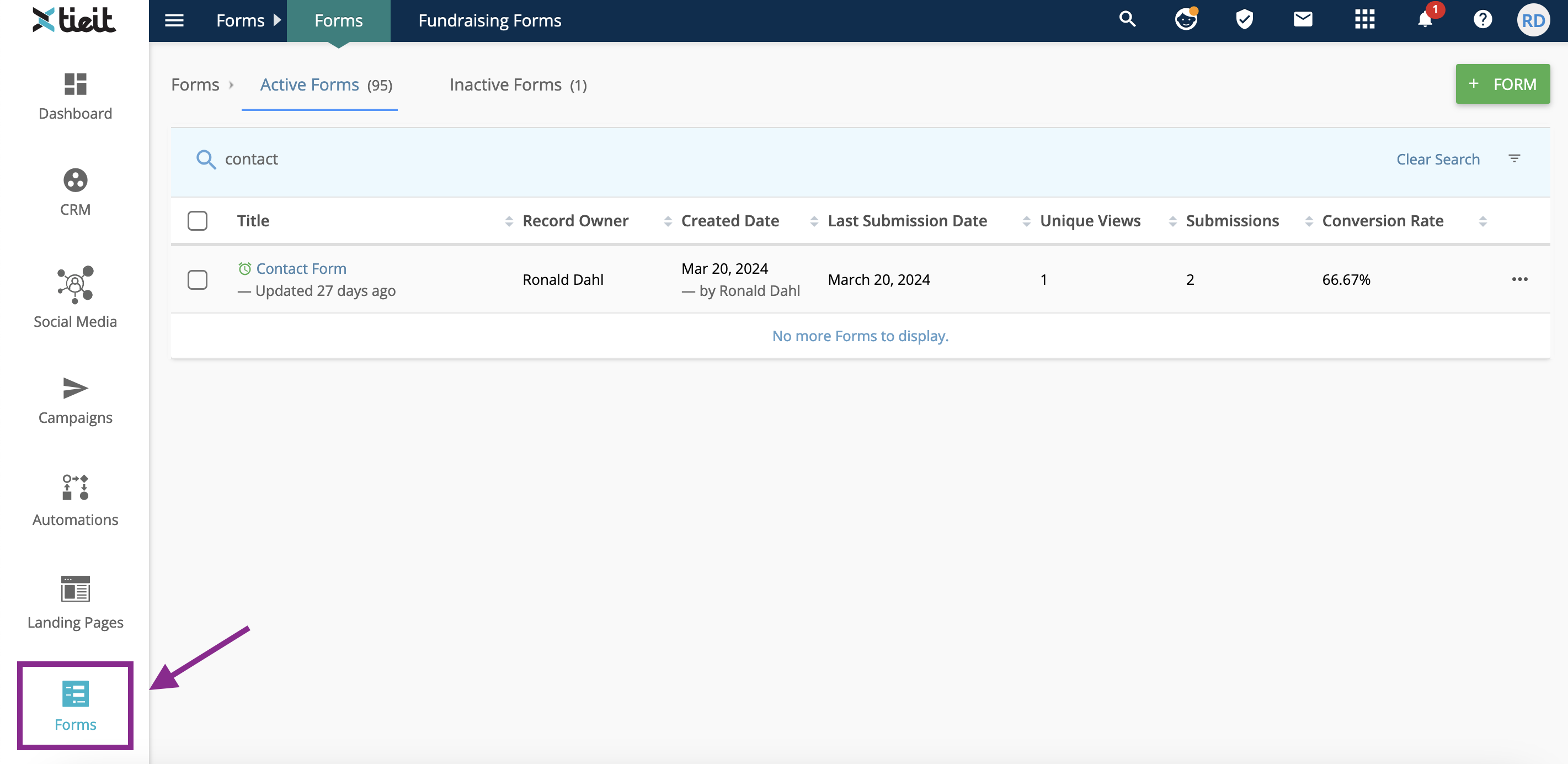
- Go to the forms listing page by clicking the forms module on the left panel.
- Use the tabs to toggle between active and inactive forms.
How to Disable a Form Based on Specific Criteria
To disable a form manually or set it to automatically deactivate based on a date, submission limit, or both:
-
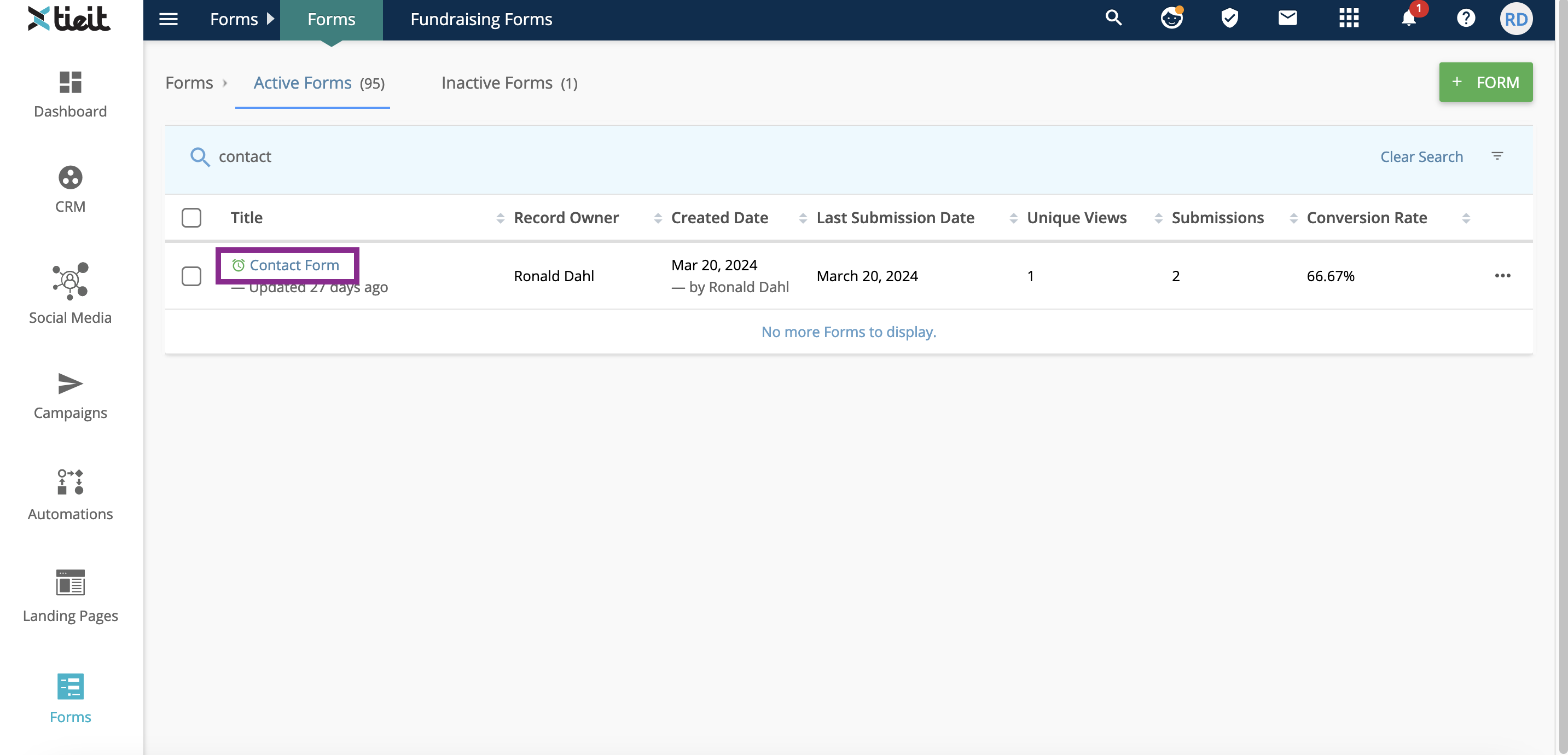
Click the forms module on the left panel.
-
Select the form name you’d like to edit.
-
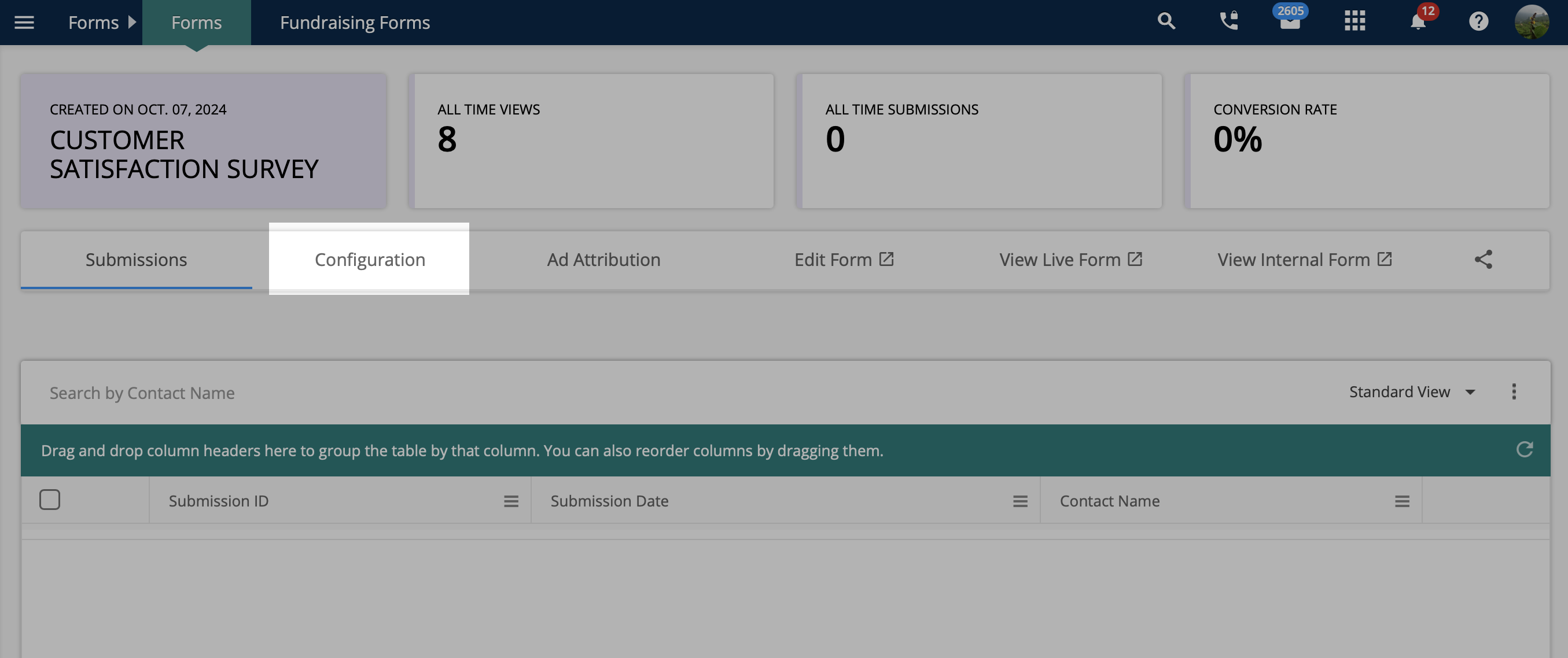
Go to the Configuration tab.
- Scroll down and click on Form Ownership & Status in the left panel and select one of the options:
- Disable Immediately: The form will no longer accept submissions.
- Disable on Specific Date: Choose a date when the form should stop accepting submissions.
- Disable on Submission Limit: Set a maximum number of submissions (e.g., 50), and the form will automatically disable once this limit is reached.
- Disable on Specific Date or Submission Limit (whichever comes first): The form will deactivate based on whichever condition is met first.

Customizing the Disabled Form Message or Redirecting Visitors
When a form is disabled, you can either display a custom message or redirect users to another page. This is useful so you can customize what visitors should see when they go to a form that is no longer activWhen a form is disabled, you can either display a custom message or redirect users to another page. This is useful for customizing what visitors see when they access a form that is no longer active. These settings are available under the Inactive Form Options in Form Settings.
- Go to Form Ownership & Status within the form’s Configuration tab.
- When you select any of the Disable options for the form Status, you can scroll down to Inactive Form Settings.
- In the Redirect Message/Page Name field, enter a title for your message or redirect.
- Choose a Redirection Type:
- Custom Message: Display a personalized message to users. Select Custom message, then enter your title in the Title field and message in the Message field.
- Redirect: Send users to a different webpage by selecting Redirect and entering the target URL.
- Landing Page: Redirect users to a TIEIT landing page by choosing Landing Page and selecting the landing page from the dropdown.

💡TIP: If you have created multiple redirect options, select the radio button for the message or redirect you want to appear in the form settings area.

How To Enable Disabled Forms
To re-enable a form:
-
Go to the for
ms module on the left panel.
-
Select the Inactive Forms tab.
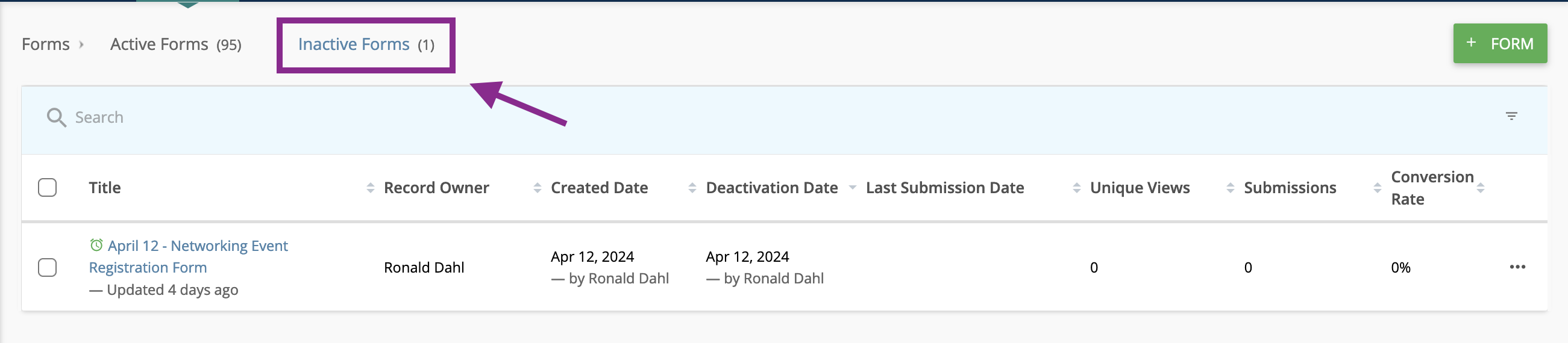
- Click the form name to access its Configuration tab.
- In Form Ownership & Status, change the status to Enable.

Frequently Asked Questions
-
How do I disable a form?
You can disable a form by accessing the Form Ownership & Status tab in the form Configuration. Under Form Status, select Disable to stop receiving submissions immediately, or set conditions to disable the form automatically.
-
Can I set a form to automatically disable after reaching a certain number of submissions?
Yes, in the Form Status settings, choose Disable on Submission Limit to automatically disable the form once it reaches a specified number of submissions.
-
How can I deactivate a form on a specific date?
Go to Form Status under the Configuration tab, and select Disable on Specific Date to choose the exact date when the form should stop accepting submissions.
-
What message will users see when a form is disabled?
You can customize the message under Inactive Form Options in the Form Settings. You can also redirect users to a different page or landing page.
-
Can I redirect users from a disabled form to another page?
Yes, in the Inactive Form Options, select Redirect or Landing Page as the redirection type, and enter the URL or select a landing page.
-
How do I enable a disabled form?
To enable a disabled form, go to the Inactive Forms tab, click on the form name, access Form Settings, and switch the status to Enabled.
-
Can I create multiple redirect options for an inactive form?
Yes, you can set multiple redirect options. Be sure to select the radio button for the active option you want.