
How to Enter Credit Card Details For a Contact
Overview
TIEIT allows you to securely store a contact’s credit card so invoices and subscriptions can be paid automatically. You can add a card directly from the contact record or while working with invoices. This article explains where to add a card and how each method works.
What’s in this Article
Add a Credit Card from the Contact Record
You can store a contact’s card directly from their CRM profile.
- Open the Contact’s page in the CRM.
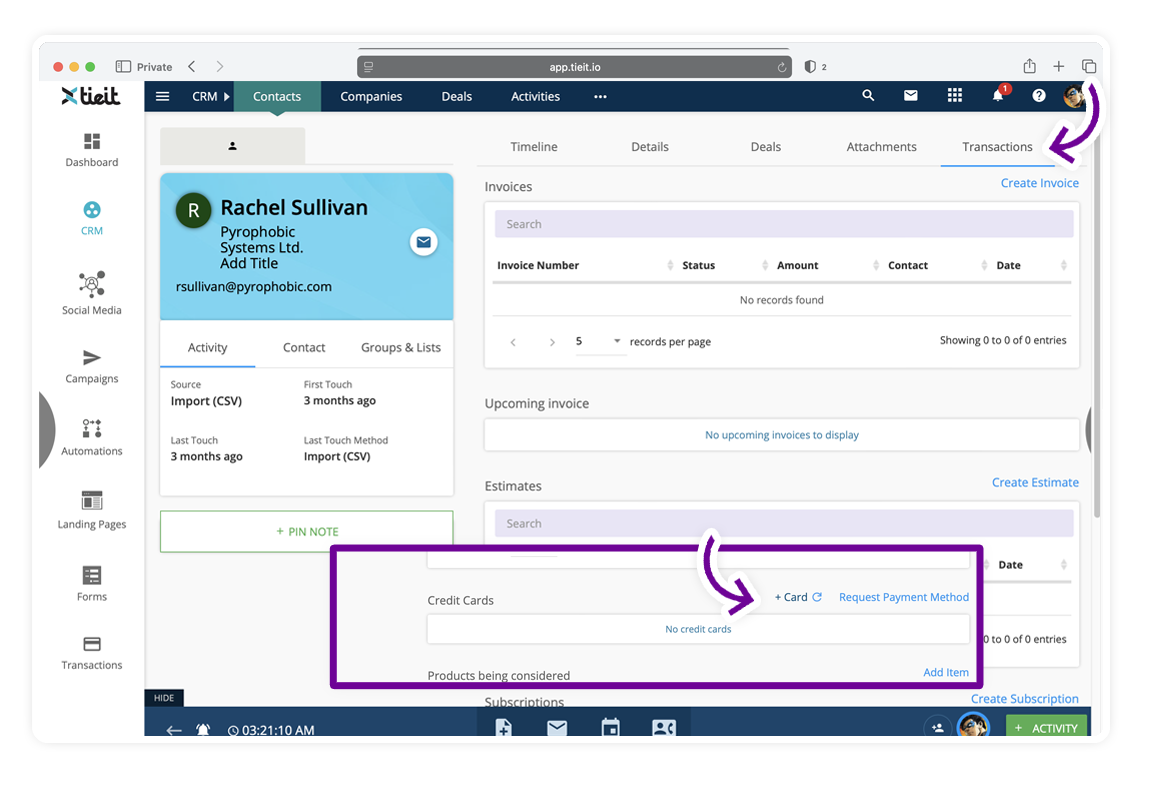
- Go to the Transactions tab.
-
Scroll to the Contact Cards section and click + Card.
-
Enter the credit card details and select Save Card.
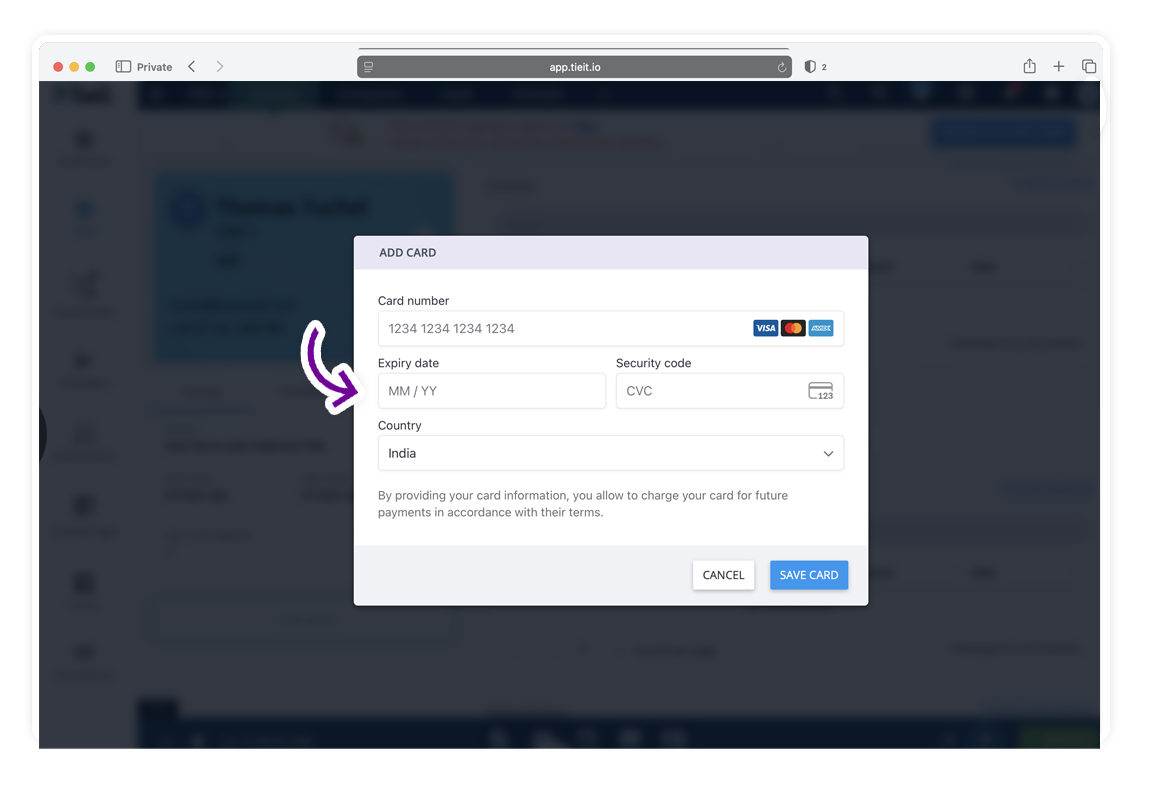
The card will be securely saved and available for invoice payments and auto-charge scenarios.
Add a Credit Card from the Invoice Listing Page
You can also add a card while reviewing invoices.
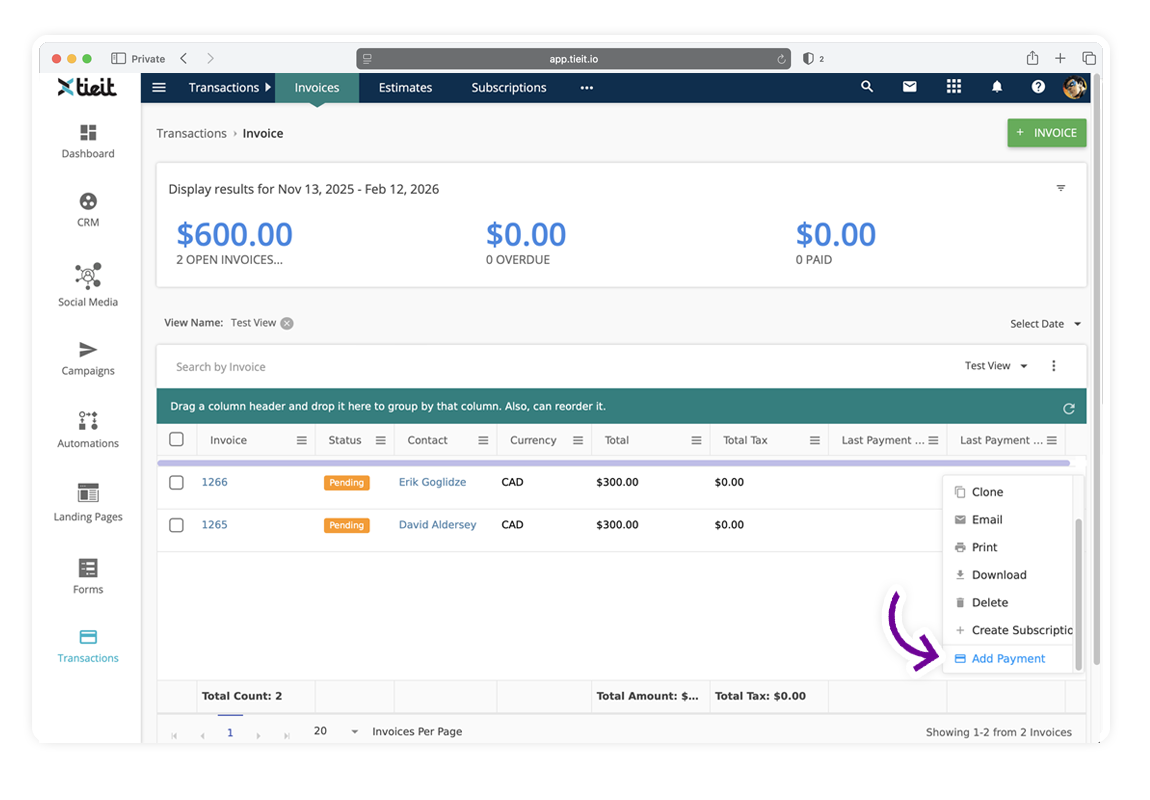
- Go to the Invoices listing page.
- Locate the relevant invoice and click on the 3 dots menu in the right.
-
Choose Add Payment.
-
Choose Process Payment Tab
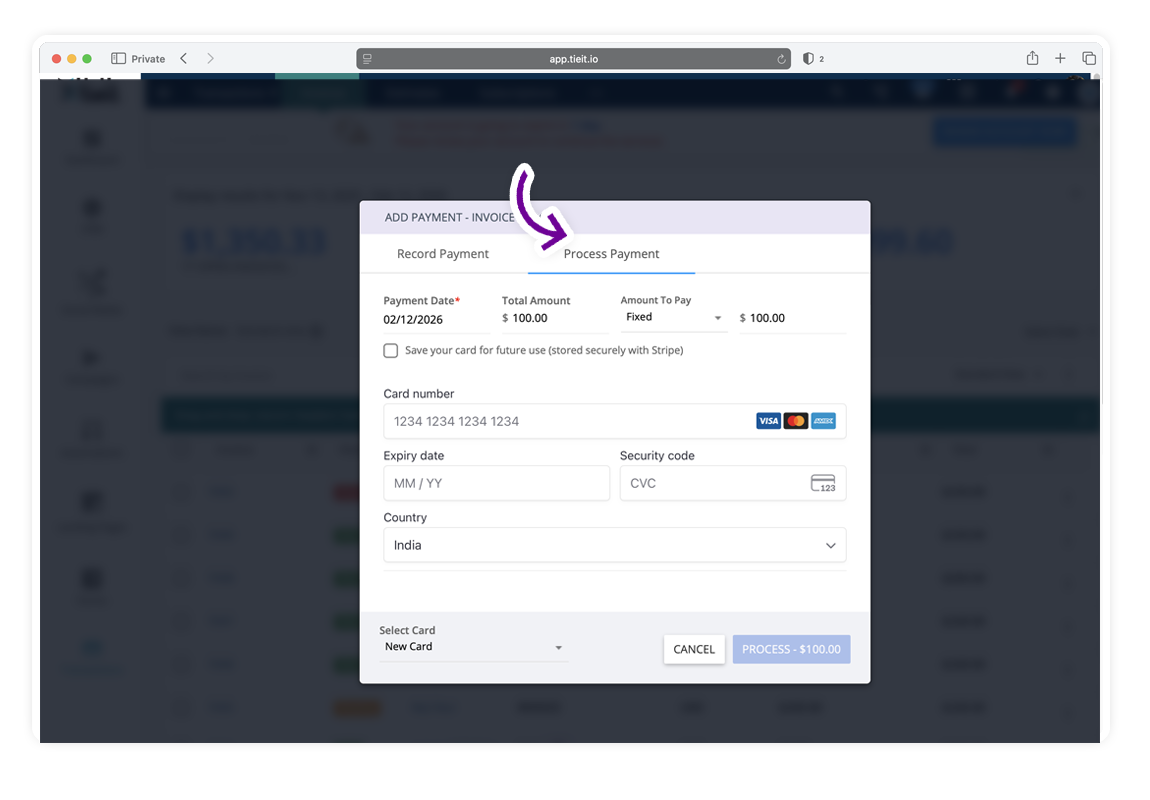
- Enter the contact’s credit card details. If needed, tick the checkbox to save your card for future use (stored securely with Stripe) and Process amount.
This method is useful when a customer is ready to pay and no card is stored yet.
Add a Credit Card from the Invoice Detail Page
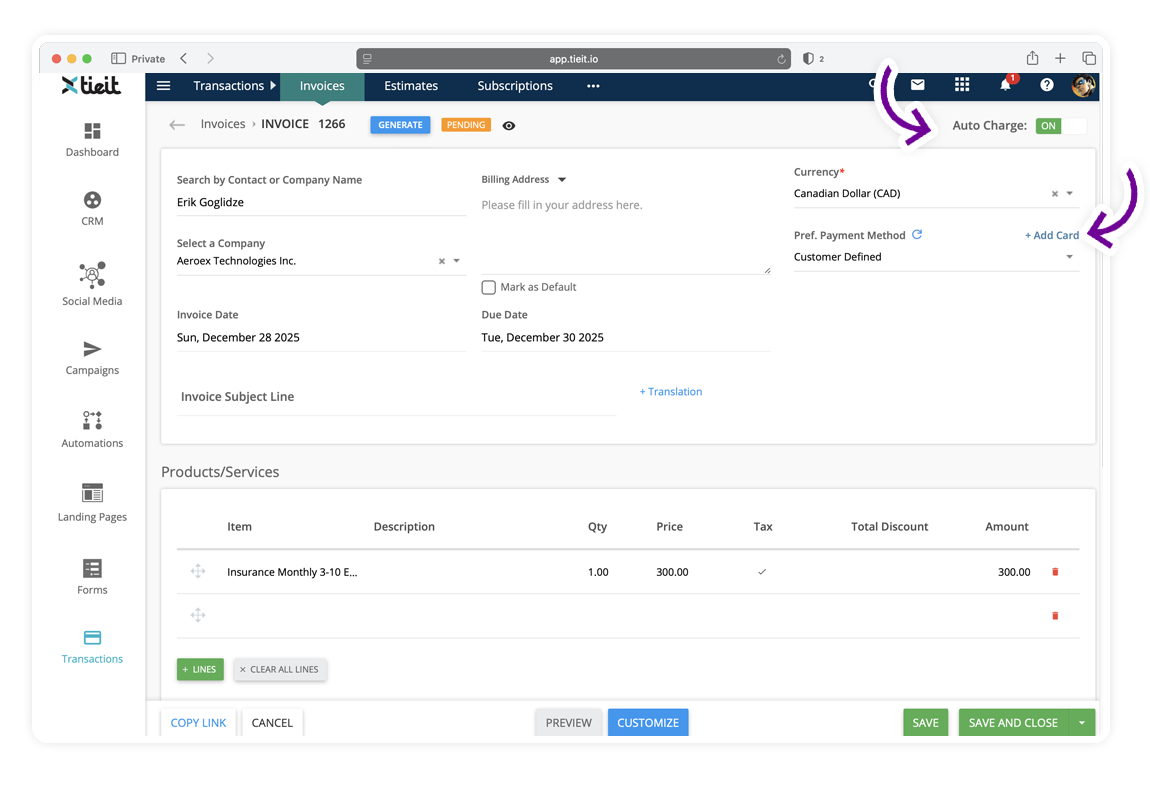
Cards can also be added while configuring automatic payment on an invoice.
- Open the invoice detail page.
- Turn Auto Charge ON.
-
Next to Preferred Payment Method, click on Add Card.
-
Enter the card details and Save Card.
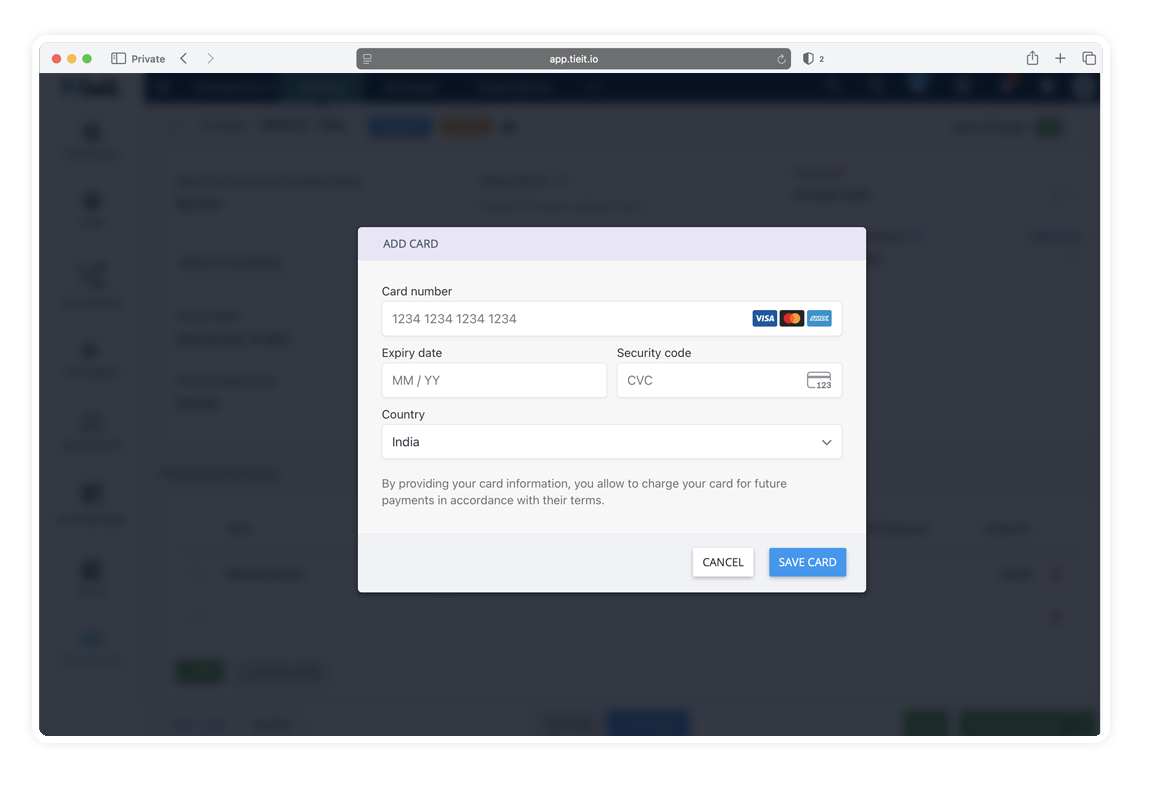
Once saved, the card can be used for automatic invoice collection and subscriptions.
Important Things to Know
- Saved cards are tied to the contact, not just a single invoice.
- A stored card enables Auto Charge for invoices and subscriptions.
- Only users with appropriate permissions can add or manage payment methods.
- Make sure the correct contact is selected before saving a card.
Need Help?
If you have trouble adding a card or enabling Auto Charge, contact the TIEIT Support Team through the Help Center. We’re happy to help.